How to Install TiviMate on Firestick (2026 Setup Guide)
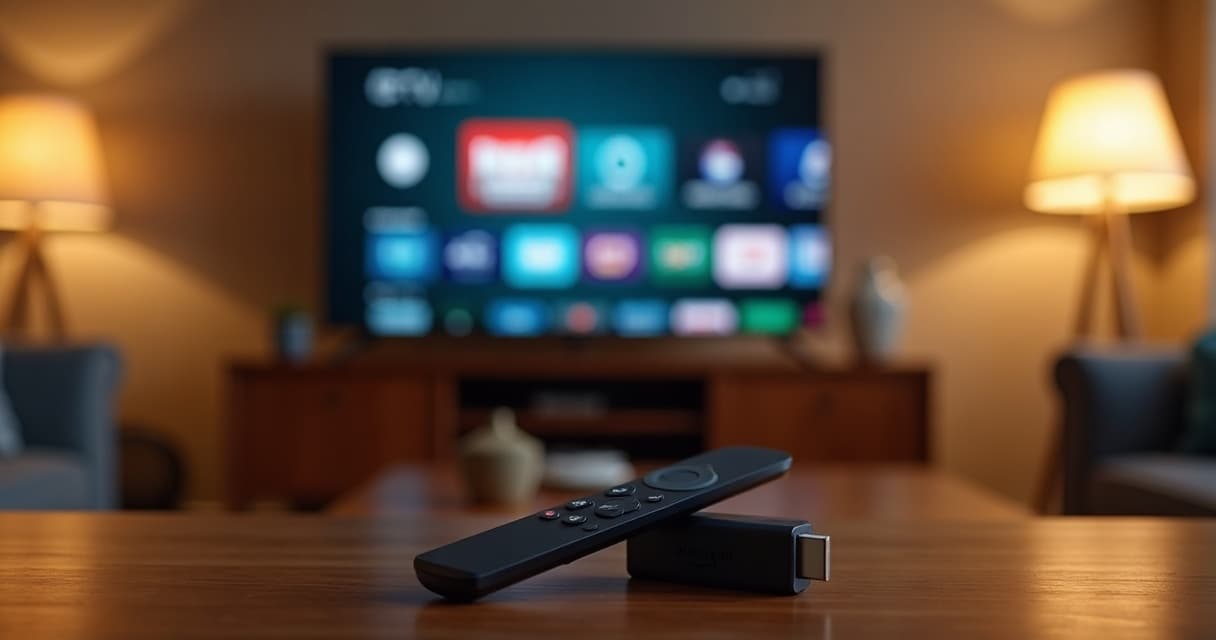
A step-by-step walkthrough for installing TiviMate on any Amazon Fire TV Stick — Lite, 4K, 4K Max, or Cube. No computer required. Covers Downloader, login, playlist import, EPG, and the four settings that fix 90% of first-day buffering.
TiviMate is the most-installed third-party IPTV player on Fire TV — and for good reason. The interface looks like a real cable EPG, the playlist auto-refresh is reliable, and it handles 4K HEVC streams without the audio-drift you get on the default Fire TV media player. The catch is that TiviMate isn't in Amazon's Appstore, so you have to sideload it. This guide takes you from a fresh-out-of-the-box Firestick to a fully configured TiviMate setup in about ten minutes.
What you'll need before you start
You need three things in front of you:
A Fire TV device. Any model from the last five years works — Fire TV Stick Lite, Fire TV Stick 4K, Fire TV Stick 4K Max, or Fire TV Cube. The Lite is fine for 1080p; for 4K HDR streams the 4K Max gives you the smoothest experience because it has more RAM and a faster Wi-Fi chip.
Your IPTV provider's M3U URL (sometimes called a "playlist URL") and Xtream Codes credentials if your provider supports them. iBostreaming sends both by email seconds after activation — most other reputable providers do the same.
A stable internet connection. TiviMate streams over HLS or MPEG-TS, both of which need at least 15 Mbps sustained download for 1080p and 25 Mbps for 4K. Run a quick speed test on the Firestick itself (the "Internet Speed Test" app in the Appstore is fine) before you start.
Step 1 — Turn on app installation from unknown sources
This is the step almost everyone forgets, and it's the one that produces the cryptic "Install blocked" error later.
On the Fire TV home screen, go to **Settings → My Fire TV → Developer Options**. If you don't see Developer Options, go to **About** first, then click on the model name seven times until you see "You are now a developer." Then back out and Developer Options appears.
Inside Developer Options, turn on **Apps from Unknown Sources** (older Firesticks) or **Install unknown apps** (newer ones). When the warning popup appears, accept it. This is the standard Android sideloading permission — TiviMate isn't malware, but Amazon doesn't ship third-party IPTV players in their store.
Step 2 — Install the Downloader app
Downloader is a free utility from the official Fire TV Appstore that fetches APK files over the network. Go to the Fire TV search (the magnifying glass icon in the top-left), type **Downloader**, install it.
Open Downloader. The first time it runs it asks for permission to access files — allow it. You'll see a URL bar in the middle of the screen.
Step 3 — Sideload TiviMate
In Downloader's URL bar, type the official TiviMate download URL exactly: **tivimate.com/download**. (Type it letter by letter — copy/paste between devices is fragile on Fire TV.) Hit **Go**.
The website opens inside Downloader's browser. Scroll down to the "Download APK" button and click it. Downloader pulls down the latest APK (about 25 MB). When the download finishes, an install prompt appears — click **Install**.
If you see "Install blocked", you skipped Step 1. Go back and turn on Apps from Unknown Sources.
After the install finishes, click **Done**, then **Delete** to remove the APK from the Firestick's storage — you don't need it anymore. (Downloader is asking; "Delete" only removes the installer file, not the app you just installed.)
Step 4 — Open TiviMate and add your playlist
Press the home button on the Fire TV remote and scroll down to **Your Apps & Channels → See All**. TiviMate is at the bottom of the list. Long-press the OK button on it to "Move" it to the front so you can find it later.
Open TiviMate. The first screen asks how you want to load channels:
- **Add playlist (M3U)** — paste in the M3U URL your provider emailed you. Use this if you only got a URL.
- **Xtream Codes** — enter the server URL, username, and password your provider gave you. Use this if your provider offers Xtream Codes (iBostreaming does). It's better than M3U because the EPG, channel groups, and series info all load automatically.
For iBostreaming, pick Xtream Codes. Paste in the server URL (something like http://line.ibostreaming.com:8080), your username, your password, then click **Next**.
TiviMate validates the connection. Within 10–30 seconds you should see the channel count populate ("40,000+ channels loaded"). If you see "Connection error", double-check the URL didn't autocorrect to https — IPTV servers usually run on http with a custom port.
Step 5 — Pick a profile name and download the EPG
TiviMate asks for a "profile name" — this is just for you. Call it something obvious like "Home" or your provider name.
It then asks if you want to download the program guide (EPG). Say **yes**. TiviMate pulls down the next 7 days of programming data, which is what gives you the cable-TV-style grid view. Depending on your connection and the size of the EPG, this takes 30 seconds to two minutes.
When the spinner stops, you land on the live TV view. Press the OK button on the remote and the channel list slides in from the left.
Step 6 — The four settings that fix 90% of buffering
TiviMate's defaults are conservative — they work for everyone but they're not optimal for anyone. Open **Settings** (the gear icon, accessible by long-pressing the back button or pressing UP + OK on the channel list).
**Playback → Decoder.** Change from "Hardware" to **Hardware+**. Hardware+ lets TiviMate fall back to software decoding for codecs the Fire TV doesn't natively handle (some channels broadcast in HEVC 10-bit with no hardware path on older Sticks). You lose ~5% battery on the Cube but gain 100% of the channels that would otherwise show "Codec not supported."
**Playback → Buffer size.** Change from "Default" to **Maximum**. The default is 1500ms; Maximum is 5000ms. This is what protects you from short Wi-Fi dropouts during the goal — TiviMate has five seconds of video already downloaded, so a 1-second hiccup is invisible.
**Playback → User agent.** Set to **VLC**. Some IPTV CDNs throttle the default TiviMate user-agent — VLC is the most-allowlisted UA across IPTV infrastructure.
**General → EPG → Update interval.** Set to **6 hours**. The default is "every app launch" which adds a 30-second delay every time you open the app. Six hours keeps the guide fresh without the delay.
Restart TiviMate after changing these (long-press home → close TiviMate, then reopen).
Step 7 — Set TiviMate as the default launcher (optional)
If TiviMate is the only thing this Firestick is used for, you can replace the Amazon home screen with TiviMate so it opens instantly when the Stick wakes up. Look up "Fire TV launcher manager" in the Appstore, install it, and pick TiviMate as the default. Reversible at any time — you're not flashing firmware, you're just changing which app the home button opens.
Common first-day problems
**"All channels show 'Cannot play this video'."** Your provider line is probably suspended or you mistyped the password. Test the same credentials in IPTV Smarters Pro on your phone — if it fails there too, contact your provider. If it works on the phone but not TiviMate, you've got the user-agent issue from Step 6.
**Only some channels buffer.** This is almost always the channel itself, not your setup. IPTV channels are aggregated from many upstream sources; one source can be saturated while the rest run fine. Switch to the same channel's backup (most reputable IPTV providers offer "HD", "FHD", "4K", and "Backup" variants of premium channels). iBostreaming's backups are labelled "(BK)" in the channel list.
**The EPG is empty or wrong.** Open Settings → EPG → EPG sources, remove all entries, then re-add your provider's source. If your provider only ships M3U (not Xtream Codes) you may need a separate XMLTV URL — ask support.
**Audio is out of sync.** Switch the audio track inside TiviMate (long-press OK during playback → Audio track). Many channels broadcast multiple audio tracks (original + dubbed); the first track is sometimes the wrong one. If switching tracks doesn't help, change Decoder back to "Hardware" (without the +) for that channel only — some software decoders introduce a 200ms audio delay.
You're done
That's the entire setup. Total time once you've done it once: under five minutes. The longest part is the EPG download, and that's a one-off.
If you don't have an IPTV subscription yet, install TiviMate first to get the workflow muscle memory, then pick a plan and plug in the credentials. iBostreaming delivers your username, password and M3U URL within seconds of payment, and every plan is backed by a 14-day money-back guarantee — so you can confirm everything works on your TV before the window closes.
Ready to start streaming?
40,000+ channels, 200K+ VOD, 4K quality — instant activation.